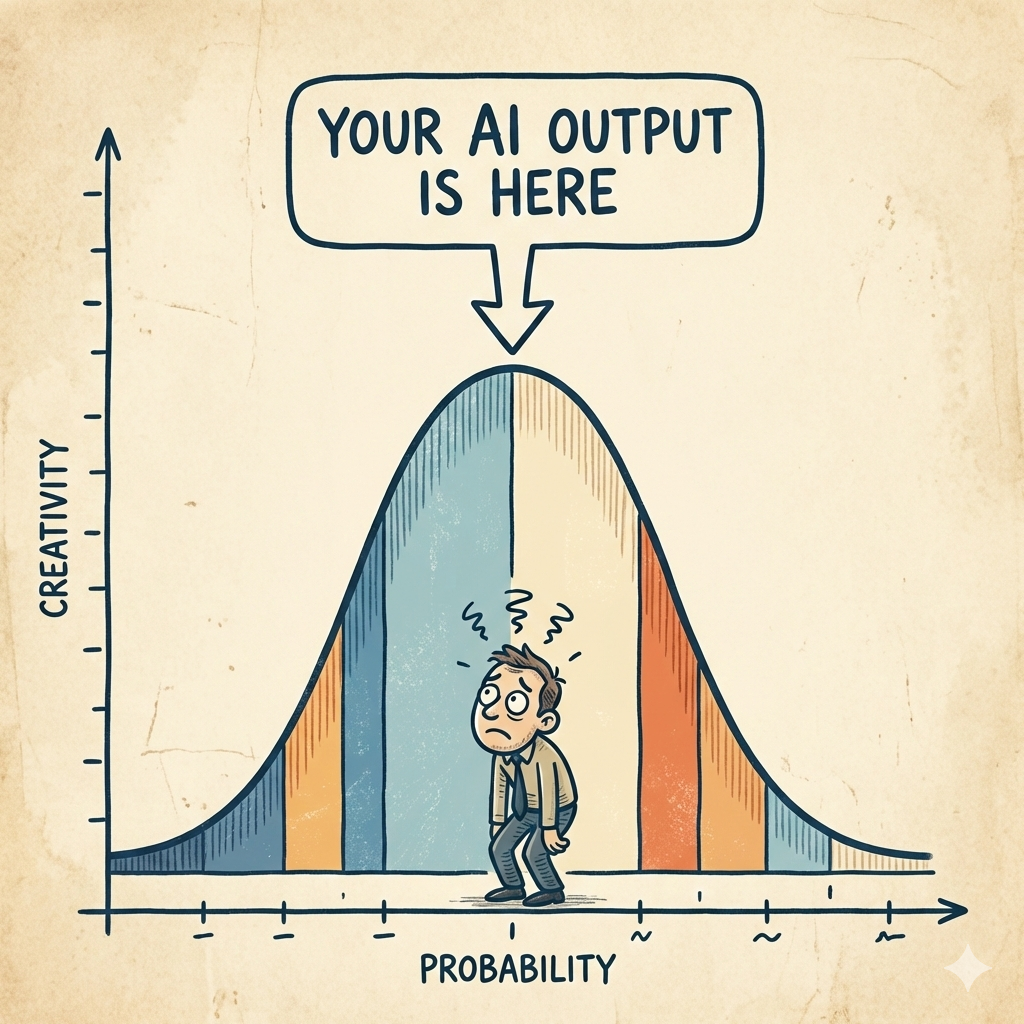
Your AI was trained on thousands of raters but, since none of them are you, the output always feels off. This article is going to help you fix that.
By Nate
Published: 2026-02-05
URL: https://natesnewsletter.substack.com/p/why-your-ai-output-feels-generic
The complaint about AI output is always the same: it’s fine. Helpful. Competent. Polite. You can’t point to an error. But when you read the response — really read it, not just scan — it doesn’t feel like it was written for you. The career advice applies to someone in roughly your situation but not your actual situation. The code works but doesn’t match how your team builds. The restaurant recommendations hit the tourist spots, not the places you’d actually like.
People blame their prompts. They take courses, watch tutorials, learn frameworks for asking better questions. And better prompting does help — the way turning the steering wheel helps when you’re driving in the wrong direction. It improves the experience without addressing why the experience needed improving.
The reason AI output feels generically fine is that it was optimized to be generically fine. That’s not a side effect. That’s the training objective.
These models go through a process called RLHF — Reinforcement Learning from Human Feedback — where human raters compare outputs and pick which they prefer. The model learns to produce responses those raters would choose. Not responses calibrated to you, your expertise, your constraints, your context. Responses calibrated to a hypothetical typical person asking a similar question. The statistical center. When thousands of raters evaluate millions of outputs, the model learns what tends to win with generic raters — and the training papers from both Anthropic and OpenAI describe this process openly.
Every time you use default settings, you’re getting an answer optimized for someone who doesn’t exist — the median user, a composite of everyone’s preferences and nobody’s in particular.
The model makers know this. And over the past year, they’ve quietly built four distinct mechanisms for escaping it — memory, instructions, tools, and style controls — that go well beyond prompting. But the mechanisms themselves aren’t the interesting part. What’s interesting is what happens when you use them deliberately over time: corrections compound, context accumulates, and the distance between what AI gives you by default and what it gives you after months of steering becomes difficult to overstate.
Here’s what’s inside:
- Why you’re being averaged. The specific training mechanism that optimizes AI for everyone and no one — and why better prompting alone can’t fix it.
- The four levers beyond prompting. Memory, instructions, tools, and style controls across ChatGPT, Claude, and Gemini — what each actually does, where they overlap, and where they don’t.
- The compounding effect. Why the people getting extraordinary results aren’t smarter or more technical — they’re encoding corrections instead of repeating them.
- Where steering breaks down. Hallucination, creative work, and occasional use — the honest boundaries of what personalization can and can’t solve.
- The prompts. A steering audit you can run today to identify your actual position and start encoding it.
But before the levers, it’s worth understanding what “averaged” actually looks like in practice — because until you can see it, you can’t steer against it.
Subscribers get all posts like these!
Grab the Resources (links below)
Most people read about memory and instructions and style controls, open the settings page, and stare at a blank text field with no idea what to type. Or they type something vague — “be concise,” “match my style” — and nothing changes, because the instruction describes a quality everyone wants rather than a position only they occupy. These resources exist because I’ve watched that pattern repeat too many times. The guide walks you through every settings page across ChatGPT, Claude, and Gemini so you know exactly where to click. The prompts help you figure out what to actually put in those fields — starting with where you differ from the median user, then sharpening vague preferences into specific instructions, then building the compounding habit that makes everything else stick.
- LINK: Grab the setup guide — step-by-step configuration for ChatGPT, Claude, Gemini, and Claude Code, plus starter templates and a maintenance checklist.
- LINK: Grab the prompts — four prompts that do the hard part: mapping your position, sharpening instructions, compounding corrections, and bootstrapping CLAUDE.md files.
What “Averaged” Means
Imagine a restaurant that wants to create one dish to satisfy the widest possible range of customers. Not delight anyone in particular — just avoid disappointing too many people. The chef studies what most diners order. They analyze which flavors get consistent approval across different demographics. They optimize for the middle.
What do you get? Something edible. Competent. Technically fine. But not your preferences — not spicy enough if you like heat, not subtle enough if you like delicate, not adventurous enough if you’re an explorer, too adventurous if you’re not.
This is what AI does with every response. And the tricky part is that averaged output doesn’t feel averaged — it feels like the AI just isn’t that good. You don’t think “this was optimized for someone else.” You think “this is kind of generic.” The failure mode is invisible because the output is never wrong, just never quite calibrated to you. So you assume you’ve hit the ceiling of what the technology can do, when actually you’ve hit the ceiling of what default settings will give you.
That distinction matters. One ceiling is fixed. The other is movable.
How Models Learn to Be Average
The mechanism is straightforward — raters compare outputs, models learn preferences, responses converge toward the middle. What’s worth sitting with is the implication.
The raters who shaped these models aren’t experts in your field. They’re not familiar with your constraints. They don’t know your communication style, your level of expertise, or what you’re actually trying to accomplish. They’re looking at two responses and picking whichever one seems more helpful — by their lights, for a generic user they’re imagining.
That’s not a flaw in the process. It’s the process working as designed. RLHF is how you make a model that’s broadly helpful to millions of people — and the cost of broad helpfulness is that the model smooths over exactly the specifics that make your situation yours.
There’s a real tension here that most people miss. The same training that prevents the AI from being weird, offensive, or unhelpful also prevents it from being calibrated to your particular needs. Safety and helpfulness, as currently implemented, come at the cost of personalization. The mechanism that protects you from bad outputs is the same mechanism that prevents great ones.
The Four Levers (Beyond Prompting)
For years, prompting was the only way to escape the average. You’d front-load context into your question, specifying constraints and preferences, hoping the model would adjust. Every conversation started from scratch.
That’s changed. There are now four distinct ways to steer AI away from the median—four levers beyond the prompt itself. Most people use none of them.
Lever 1: Memory
Memory is the AI retaining information about you across conversations. Instead of starting fresh every time, it remembers your context—your job, your projects, your preferences, things you’ve mentioned before.
The promise is powerful: an AI that knows you, that builds on previous conversations, that doesn’t need the same context re-explained every time.
The reality is platform-specific.
ChatGPT Memory
ChatGPT’s memory works in two layers. “Saved memories” are facts you explicitly ask it to remember—your name, dietary restrictions, communication preferences. “Chat history” is broader: ChatGPT references your entire conversation history to understand your preferences without you asking it to remember anything specific.
In recent updates, ChatGPT can attach past chats as clickable sources when it references them — so you can see which conversation it’s drawing from. This makes the system more transparent—you can verify it’s using the right context.
Settings → Personalization → Memory shows everything ChatGPT knows about you. You can delete individual memories, turn off saved memories, or turn off chat history reference separately. The system automatically manages capacity by deprioritizing less relevant memories, so you won’t hit a hard “memory full” state anymore.
ChatGPT also has project-only memory. When you create a project, you can isolate its memory from your general ChatGPT use—what you discuss in that project stays in that project. Pro users get 40 files and 100 collaborators per shared project; Plus/Go users get 25 files and 10 collaborators.
One thing worth noting about temporary chats: they don’t save to your history, but depending on the rollout, they may still keep your tone and style settings — even if they don’t pull from saved memories. The exact behavior has shifted across updates, so check your settings if a blank-slate experience matters to you.
The thing I’ve found makes memory actually useful: active curation. Don’t wait for the system to figure you out. Tell it what matters. “Remember that I prefer one-sentence answers to factual questions.” “Remember that my audience is always executive-level skeptics.” Intentional memory is more reliable than automatic capture.
Claude Memory
Claude’s memory works differently. It has two components: Claude can search your past conversations (RAG-style retrieval), and it generates a “memory summary” that synthesizes key facts across your chat history. The summary updates periodically.
The distinguishing feature: Claude supports project-specific memory spaces alongside a separate non-project memory summary. Each project has its own context, so your startup discussions don’t bleed into your vacation planning. The isolation helps keep contexts focused rather than mixing everything together.
Settings → Capabilities → View and edit memory shows what Claude remembers. You can add custom instructions to the memory, edit the summary directly, or tell Claude what to remember in conversation. Incognito chats let you have conversations that won’t be saved or contribute to memory.
Claude also supports memory import/export—you can bring in memories from ChatGPT or export your Claude memory to another account. The interoperability is limited (no one-click import), but the capability exists.
If you’re working on something with distinct context — a client engagement, a creative project, a research area — give it its own project. The project gets its own memory, its own instructions, its own conversation history. I run separate projects for different types of work, and the isolation alone is worth the setup time.
Gemini Memory
Gemini’s “Personal Intelligence” connects to your Google apps—Gmail, Photos, YouTube, Search. When you opt in, Gemini reasons across these data sources to give personalized answers.
The pitch: you ask about tire options for your car, and Gemini finds your car model from a Gmail receipt, gets tire sizes from a photo you took, considers your driving habits from past searches, then makes recommendations. It’s pulling from your actual data, not just facts you’ve told it.
Settings → Personalization lets you connect or disconnect specific Google apps. Unlike ChatGPT and Claude, where memory accumulates from conversations, Gemini’s personalization draws directly from your existing Google ecosystem. It also has “saved info” where you can manually add preferences.
Gemini’s differentiator is the Google ecosystem — if your email, photos, and search history already live there, connecting them creates immediate personalization without telling Gemini anything. The tradeoff is privacy surface area, and whether that’s worth it depends on how deep you are in Google’s world.
Lever 2: Instructions
Instructions are persistent context about who you are and how you want the AI to behave. Unlike memory, which accumulates from conversations, instructions are things you explicitly write.
The confusing part: instructions exist in multiple places on every platform, and those places overlap.
ChatGPT Instructions
ChatGPT has several instruction layers:
Custom Instructions (Settings → Personalization → Custom Instructions): Two text fields. “What would you like ChatGPT to know about you?” is for context about your role, expertise, and constraints. “How would you like ChatGPT to respond?” is for communication preferences.
Projects: Project-specific workspaces where you set instructions that only apply within that project. You can upload files, set custom contexts, enable project-only memory, and share with collaborators.
Custom GPTs: Entire personas with their own instructions, knowledge bases, and tool configurations. You can use GPTs others have built or create your own for specific workflows.
The biggest leverage is in being specific. “Be concise” doesn’t steer—everyone wants concise. Instead: “For factual questions, answer in one sentence. For analysis requests, walk through reasoning step by step. Never include disclaimers about being an AI.”
An example that actually steers:
“Write like a direct, skeptical expert helping a smart but busy founder. Be concise and practical first. Cut filler and small talk. Use clear, straightforward English. Prefer short sentences and paragraphs. Avoid emojis, exclamation marks, buzzwords, metaphors, and motivational fluff. Get to the point quickly; lead with the answer. Push back if my assumptions look wrong.”
Claude Instructions
Claude splits instructions across three places:
Profile preferences (Settings → Profile): Account-wide context that applies to all conversations. Who you are, what you do, general preferences.
Project instructions: Context specific to a particular project—only applies within that project’s conversations. Domain-specific context, style requirements, behavioral guidelines.
Styles (Settings → Styles): How Claude formats and delivers responses, separate from what it knows about you. Presets include Formal, Concise, and Explanatory. You can create custom styles by uploading your own writing samples—Claude analyzes them and tries to match your voice.
Claude’s style feature is genuinely underused. If you have a distinctive writing voice, upload 3-5 samples of your best work. Claude generates a style profile from them. Every response then matches your tone, sentence structure, and vocabulary. This is far more powerful than trying to describe your style in words.
CLAUDE.md Files (Claude Code)
For developers using Claude Code, the instruction layer that matters most is CLAUDE.md—a markdown file checked into your repository that gives Claude project context.
Boris Cherny, who created Claude Code, described his team’s practice: whenever Claude does something wrong, they add a rule to CLAUDE.md so it doesn’t happen again. The file is checked into git. The whole team contributes. During code review, they tag @.claude to add learnings. “Every mistake becomes a rule.”
The file contains project architecture, coding standards, common commands, known pitfalls, and behavior rules. Claude reads it at the start of every session.
The CLAUDE.md pattern generalizes beyond code. Any persistent context file that you paste into conversations—or that an AI reads automatically—serves the same purpose: accumulated knowledge about how you work.
Start with /init in Claude Code to auto-generate a foundational CLAUDE.md. Then treat it as a living document. Every time Claude does something you don’t want, add a note. The first version will be sparse; by month three, it encodes real knowledge about your project.
Lever 3: Apps and Tools
Tools are capabilities the AI can use: searching the web, running code, creating files, reading documents, connecting to external services. Most people think of these as features. But they’re also steering inputs—they change what kind of output you get.
If web search is enabled, the AI looks things up. If disabled, it works from training knowledge only. Different kind of answer. If code execution is on, the AI can run code and verify it works. If off, you get code that might work but hasn’t been tested.
The MCP Standard
The Model Context Protocol (MCP) standardizes how AI connects to external tools. Think of it as USB-C for AI — a universal interface that lets any AI connect to any tool through the same protocol. Anthropic created it; the Linux Foundation’s Agentic AI Foundation now maintains it. OpenAI, Google, Microsoft, and others have announced adoption, though what “supports MCP” means varies by platform.
The Linux Foundation reports over 10,000 MCP servers exist for everything from Google Drive to Slack to databases to development environments.
ChatGPT: OpenAI calls them “Apps” (previously “Connectors”). Gmail, Google Calendar, Outlook, OneDrive, GitHub, Slack, and Microsoft Teams are available through Settings → Apps. Once connected, ChatGPT automatically references them when relevant—you don’t have to manually select them each time. There’s now a browsable App Directory where developers can publish integrations.
Claude: MCP servers connect through the Claude Desktop app. Pre-built servers exist for Google Drive, Slack, GitHub, Postgres, and more. You can also build custom MCP servers for your own data sources.
Gemini: Personal Intelligence connects to Google apps natively. For other services, MCP support exists but is less developed.
This is the part most people miss about tools: they’re not just features, they’re steering inputs. Turning web search on or off, enabling code execution, connecting your files — each one changes the character of what you get back. I think of tool configuration as part of the instruction set, not separate from it.
Lever 4: Style and Tone Controls
Style controls let you adjust how the AI communicates—warmth, enthusiasm, verbosity, formatting—separately from what it knows or what tools it has.
ChatGPT Style Controls
ChatGPT currently offers eight personality presets:
Default: The balanced experience most users know Professional: Like a colleague—clear, structured, work-appropriate Friendly: Warm and conversational Candid: Direct feedback, honest about gaps and trade-offs, less small talk Quirky: Playful, uses humor and unexpected ideas Efficient: Stripped-down, minimal responses, gets to the point fast Nerdy: Enthusiastic technical depth, embraces complexity Cynical: Sarcastic edge, questions assumptions
On top of presets, there are granular “Characteristics” controls:
Warmth: More / Default / Less Enthusiasm: More / Default / Less Headers and lists: More / Default / Less Emoji: More / Default / Less
You pick a base personality (like Efficient or Professional), then tune characteristics to dial in exactly what you want.
If you find default ChatGPT too verbose and emoji-heavy, start with “Efficient.” Add “Less enthusiasm” and “Less emoji” in characteristics. For work where you need pushback, try “Candid.” The presets affect the entire feel without you having to describe tone in custom instructions.
Claude Style Controls
Claude offers built-in style presets plus the ability to create custom styles from your own writing samples.
The custom style feature is more sophisticated than presets. You upload documents showing how you write—emails, reports, whatever represents your voice. Claude analyzes them and generates a style profile. Then it uses that profile to match your tone, sentence structure, and vocabulary in responses.
You can create multiple custom styles and switch between them. Work writing might be different from personal writing might be different from creative projects.
Claude’s writing-sample-based style creation is the deepest voice customization available right now. If you write professionally and want AI output to match, create a custom style from your best work. No amount of verbal description gets as close as showing actual examples.
Why Vague Instructions Fail
Across all four levers, there’s a common failure mode: being too vague to actually steer.
“Be concise” doesn’t move you from the median. Everyone thinks they want concise. The AI was already trying to be as concise as a typical user would prefer. What’s your actual position? Do you want one-sentence answers to factual questions? Bullet points? Thoroughness on complex topics but brevity on simple ones? Specify.
“Be direct” doesn’t move you either. Direct compared to what? In what contexts? Does direct mean no caveats, or just fewer? Short sentences, or just clear ones? Challenging your assumptions, or just not padding the response?
The instructions that work are specific enough to change what output looks like. They describe a position in the space of possible responses, not a vague quality that everyone wants.
Compare:
Vague: “Be more helpful” Specific: “When I’m stuck on a problem, ask me diagnostic questions rather than immediately giving solutions. I learn better by being guided than by being told.”
Compare:
Vague: “I’m a professional” Specific: “I’ve been doing product management for fifteen years. Skip fundamentals and go straight to nuance. My audience is C-suite executives—match their communication style.”
The specific versions tell the AI where you are. The vague versions don’t tell it anything it didn’t already assume.
Compounding
The difference between people who get real value from AI and people who find it perpetually mediocre comes down to one practice: compounding.
Every interaction generates information about what you need. Every time you think “that’s not quite right” or “too basic” or “wrong angle”—you’re discovering a steering input. Most people make these corrections in their head, get a better response, move on. Next conversation starts fresh. Adjust, forget, adjust, forget.
The people getting 10x results do something different. They capture the corrections. When they notice a pattern, they encode it. They add it to their instructions. They tell memory to retain it. They update their style settings.
In interviews about Claude Code, Boris Cherny has described running multiple Claude sessions in parallel — some in the terminal, others in the browser — shipping a high volume of pull requests weekly. His workflow isn’t magic—it’s discipline. Mistakes become rules in CLAUDE.md. Corrections compound. PR reviews become opportunities to add learnings — and the file gets smarter over time because the whole team feeds it.
“Anytime we see Claude do something incorrectly we add it to the CLAUDE.md, so Claude knows not to do it next time,” Cherny wrote. His team uses the Claude Code GitHub action to tag @.claude on pull requests and add learnings as part of the review.
You don’t need to be an engineer to do this. Keep a notes file. When you find yourself making the same correction twice, write it down. Review your instructions monthly and add patterns you’ve noticed. Prune what doesn’t seem to matter.
The first month, your instructions are sparse and generic. By month three, they encode real knowledge about how you work. By month six, you’ve built something valuable—a set of steering inputs that means you start every conversation far from where a new user starts.
A friend who does AI consulting keeps maybe forty lines of instructions. “Assume executive audience, skeptical of hype.” “When I ask for options, three max with a recommendation.” “I care more about being right than comprehensive.” Those forty lines represent months of noticing what goes wrong and encoding corrections.
The gap widens over time. That’s the point.
The Limits
Steering fixes the personalization problem. It doesn’t fix everything.
Hallucination — confidently stating things that aren’t true — isn’t an averaging problem. No amount of personal context makes a model more factually reliable. Steering also won’t create capabilities that aren’t there for domains outside the training data, and it can’t fix the context window dropping the thread when a conversation runs too long.
There’s also a ceiling in creative work. When AI generates prose or images, training data pulls toward the center of its distribution. Output tends toward competent sameness—not bad, but not distinctive. You can steer against this with specific style instructions, but you’re fighting gravity. For genuinely novel creative work, AI remains a brainstorming tool, not a replacement for human voice.
Steering also takes effort. Figuring out your position, encoding it, maintaining it—this costs time. If you use AI occasionally for random questions, it’s not worth it. Just prompt well and adjust manually.
But if you use AI multiple times a week for similar types of work, the math changes. A few hours of upfront investment plus occasional maintenance buys you permanently better output. The compounding effect is real, but only for regular use.
Know which kind of user you are.
Where to Start
If this feels like a lot, start simple.
Pick one task where you use AI regularly and the output consistently feels off. Over your next few sessions, notice the adjustments you make. Write them down.
After a few sessions, look at your notes. You’ll see patterns. Turn those patterns into instructions: “When I ask X, assume Y.” “Default to Z, not W.”
Put them somewhere persistent. Custom instructions if you use one platform consistently. A notes file you paste if you switch around.
See if it helps. If not, make instructions more specific. If it does, keep adding as you notice more patterns.
That’s the whole practice: notice what’s wrong, articulate why, encode the correction so you don’t have to make it again.
The Median Isn’t Mandatory
The AI you’re using is trained on everyone’s feedback. It learned to please everyone a little, which means it learned to please no one in particular.
Default output is median output—optimized for typical users with typical needs. You’re not typical. Your constraints, expertise, preferences, and goals are specific to you. The further they are from average, the more default settings fail you.
Four levers now exist beyond prompting: memory, instructions, tools, and style. The companies built them because they realized averaging was a retention problem—users stuck at the median eventually leave.
Most people will ignore these levers. They’ll keep getting averaged, keep adjusting manually, keep experiencing AI as fine but generic.
But if you’ve felt that gap—between what AI gives you and what you actually need—now you know why it’s there. You’re being optimized for a position you don’t occupy.
I keep thinking about what it means that these tools were built to satisfy everyone. It means the people who take the time to say “actually, here’s what I need” are working with a fundamentally different version of the technology. Same model. Different experience entirely.
You can stay at the median. Or you can steer.
I make this Substack thanks to readers like you! Learn about all my Substack tiers here and grab my prompt tool here