Meet AutoLife-OS.skill, your personal automation assistant inside Claude Cowork
By Aniket Chhetri
Published: 2026-05-27
URL: https://growwithaiguide.substack.com/p/i-automated-99-of-my-life-in-15-minutes
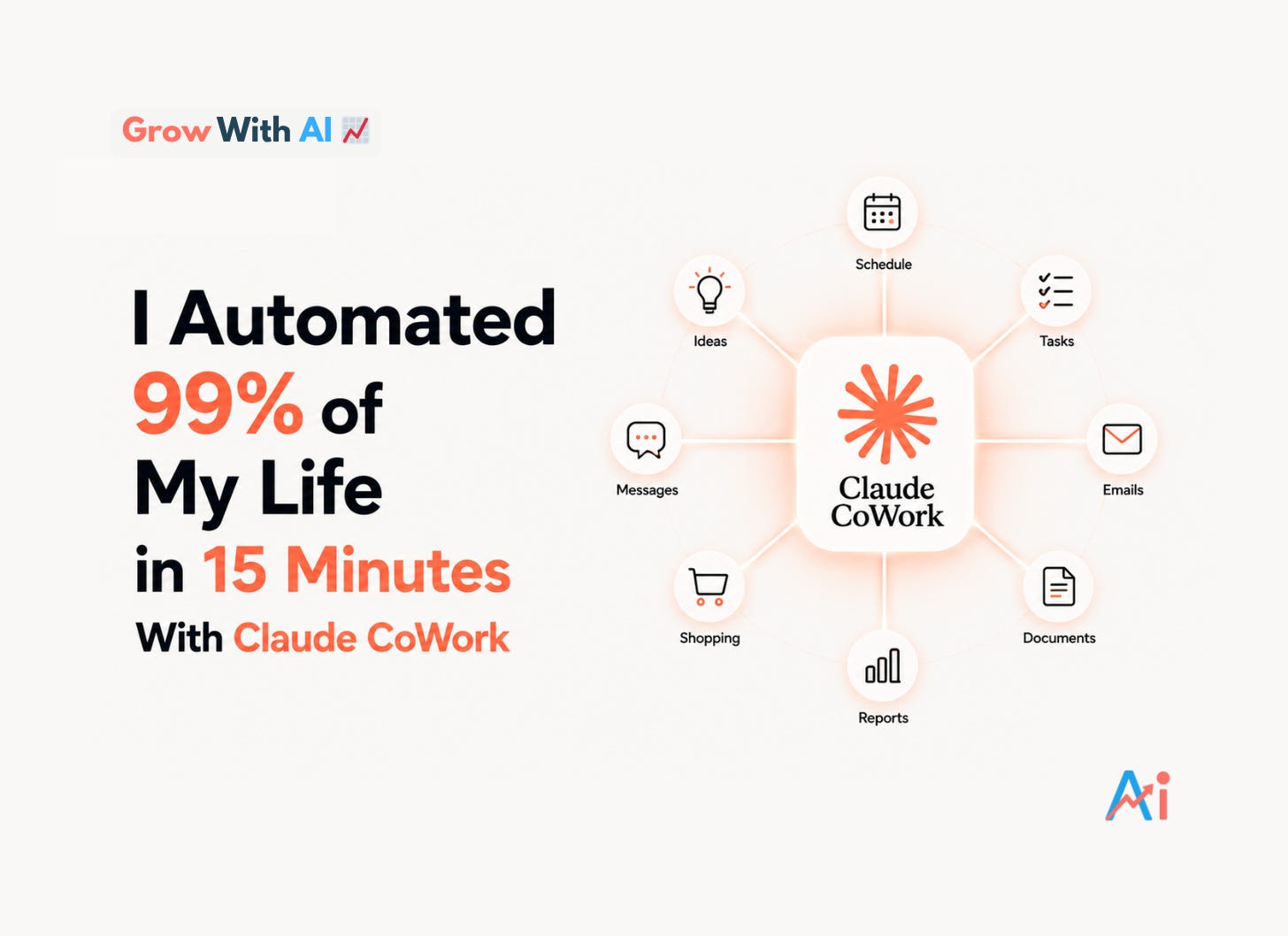
Everyone has access to Claude. Everyone has downloaded the app. Everyone has typed a prompt and got an answer.
But let me ask you something.
How many things have you actually automated with it?
Not just asked. Not just generated. Actually automated — where something happens every day, on its own, without you touching it.
If the answer is nothing, you’re not alone. And honestly, it’s not your fault.
Claude has become far more powerful than most people realise. Developers and technical people are taking massive advantage of it. But for everyone else, there’s a steep learning curve — and nobody explains it simply.
That’s exactly why I built this.
Introducing AutoLife OS
AutoLife OS is a skill file I created specifically for Claude Cowork.
It acts as your personal automation setup assistant. You don’t need to research connectors, understand commands, or have any technical knowledge whatsoever.
You just chat with it. It figures out what should be automated in your life, sets everything up, and schedules it to run automatically. Every single day.
Here’s how the workflow works:
-
It asks you what you do and what wastes your time
-
It suggests automations that actually make sense for you
-
It checks which apps you need to connect and guides you through it
-
It personalises everything to your tone, style, and preferences
-
It schedules everything to run at your chosen time
-
You wake up and it’s already done
No technical knowledge. Just chat.
What’s Included In This Edition
-
Full step-by-step setup instructions for AutoLife OS
-
The AutoLife OS skill file — attached at the bottom of this edition
Before You Start — Two Things You Need
1. Claude desktop app - AutoLife OS only works inside Claude Cowork, which is only available on the desktop app. Download it at claude.ai — it’s free with your existing Claude account.
2. A parent folder called AutoLife OS - Before doing anything else, create a folder on your computer called AutoLife OS. Put it somewhere easy to find
💡 Optional but helpful: create it inside Google Drive or iCloud Drive, or sync your local folder to either of them. That way all your automation outputs are backed up and accessible from any device.
This folder is your automation home base. Every briefing, every output, every file AutoLife generates will be organised and saved here automatically.
How To Set It Up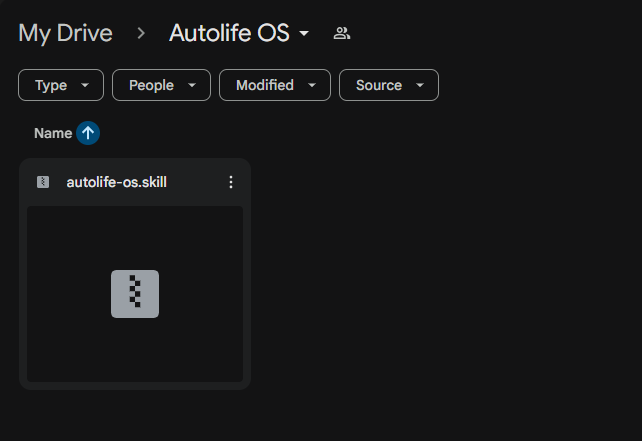
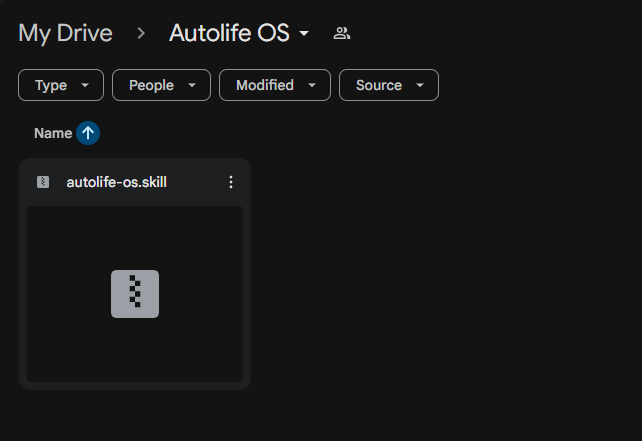
Step 1 — Download the skill file Download the AutoLife OS skill file attached at the bottom of this edition.
Step 2 — Upload it to Cowork
Open Claude desktop app → Customize → Skills → click the + → Click on “Upload a skill“→ Upload Autolife-os.skill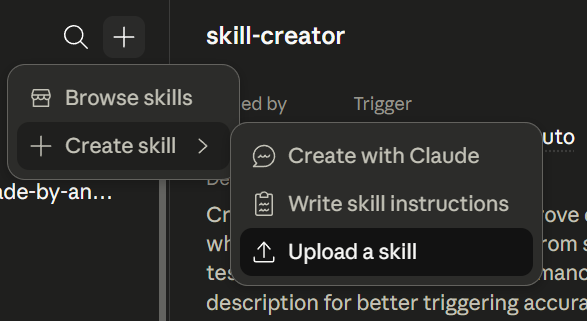
💡 Not sure how to install a skill in Cowork? I've covered everything about Claude skills — including how to install them and 40+ templates, in a previous edition.
Read it here
Step 3 — Select your AutoLife OS folder At the bottom of the Cowork chat box, click “Work in a folder” → find your AutoLife OS folder → select it.
💡 This tells Cowork where to save everything. Always make sure the right folder is selected before starting any task.
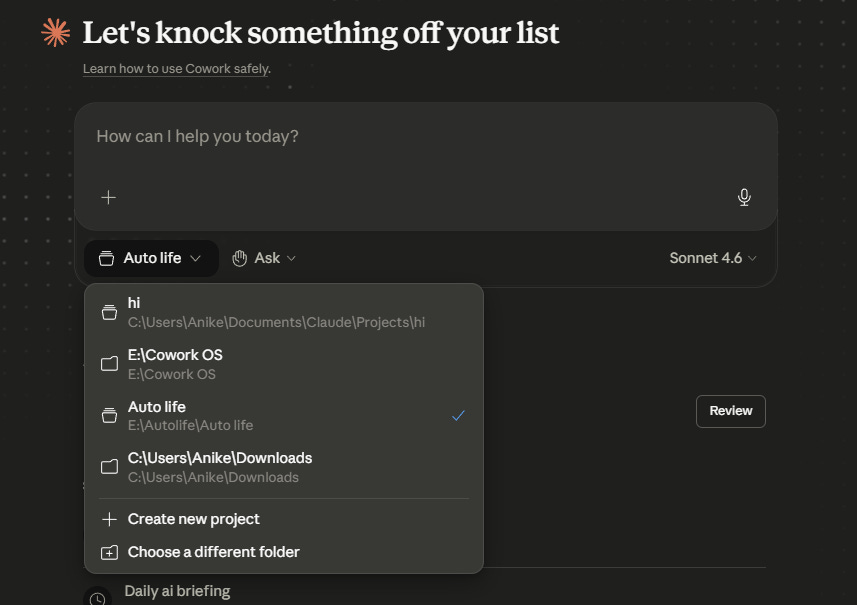
Step 4 — Start the setup In the Cowork chat box, type:
Run AutoLife OS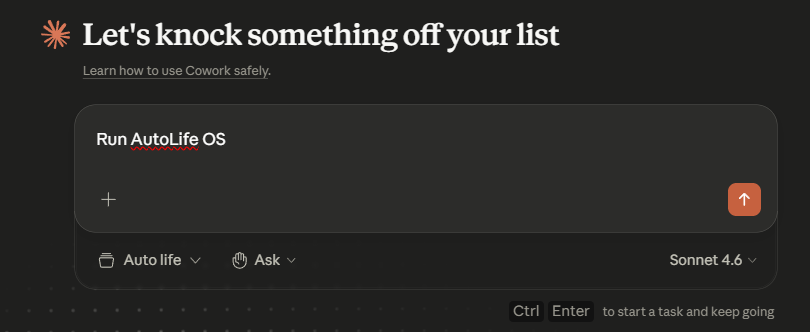
⚠️ Do not use a slash command — just type it naturally. Slash commands sometimes don’t work with uploaded skill files.
Step 5 — Answer the questions AutoLife OS will ask you a few simple questions about what you do, what apps you use, and what wastes your time.
💡 Don’t aim for perfection. Just answer with whatever comes to mind — AutoLife will understand and suggest the right automations for you.
Here’s what it looked like when I ran it myself:
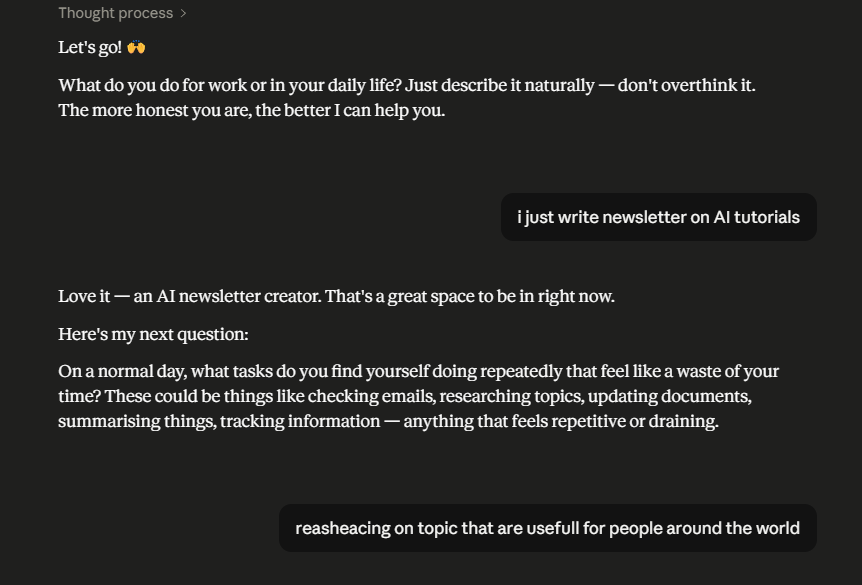
It asked me what I do. I said: “I just write a newsletter on AI tutorials.”
It then asked what tasks drain my time. I said: “Researching topics that are useful for people around the world.”
Based on just those two answers, it suggested three automations — a Daily AI Trending Topics Briefing, a Weekly Newsletter Content Ideas Report, and a YouTube AI Trends Digest.
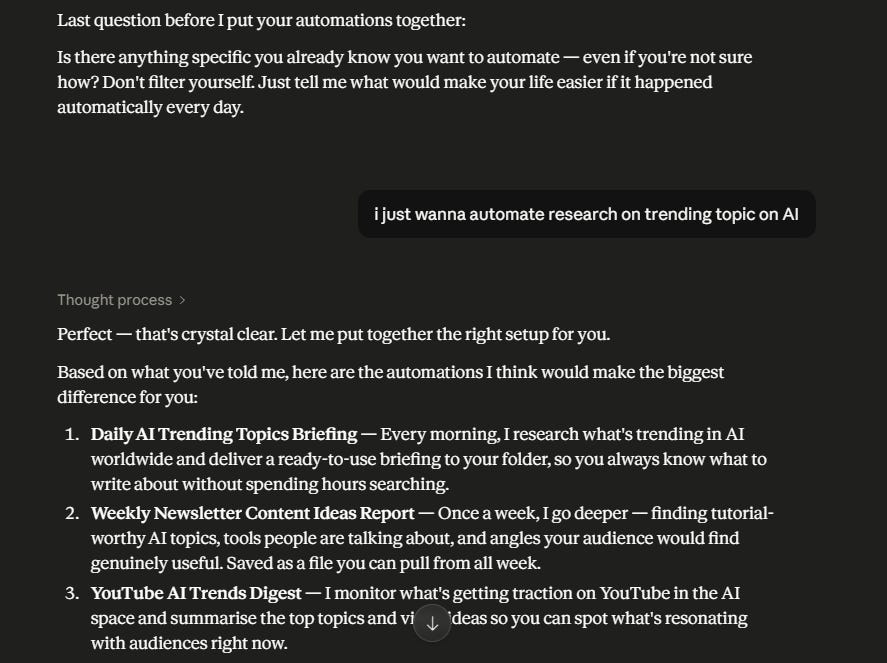
Then it went deeper. For each automation I chose, it asked personalisation questions:
“What specific areas of AI should I focus on?” — I said AI tools for everyday people.
“How do you want the briefing delivered — skimmable bullet points or detailed summaries?” — I said skimmable.
“What file format?” — I said doc.
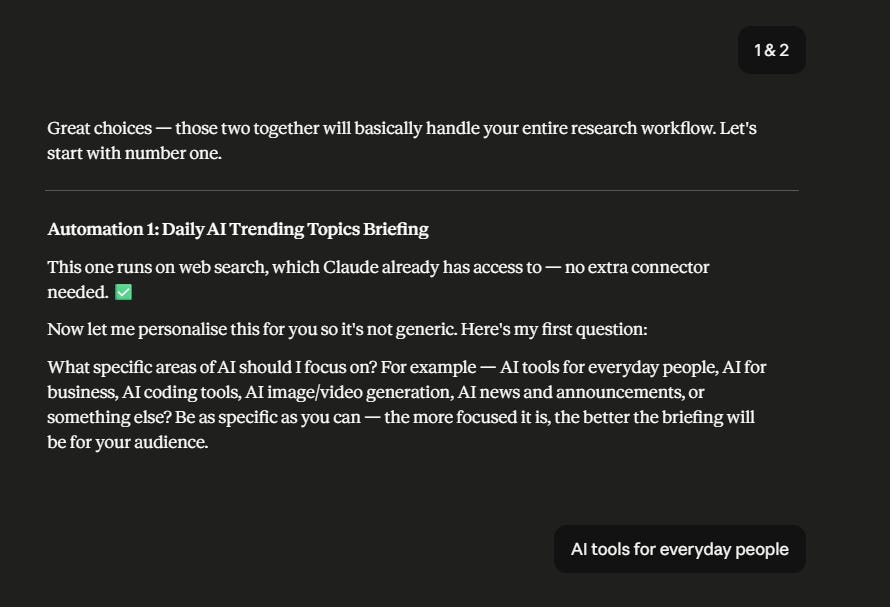
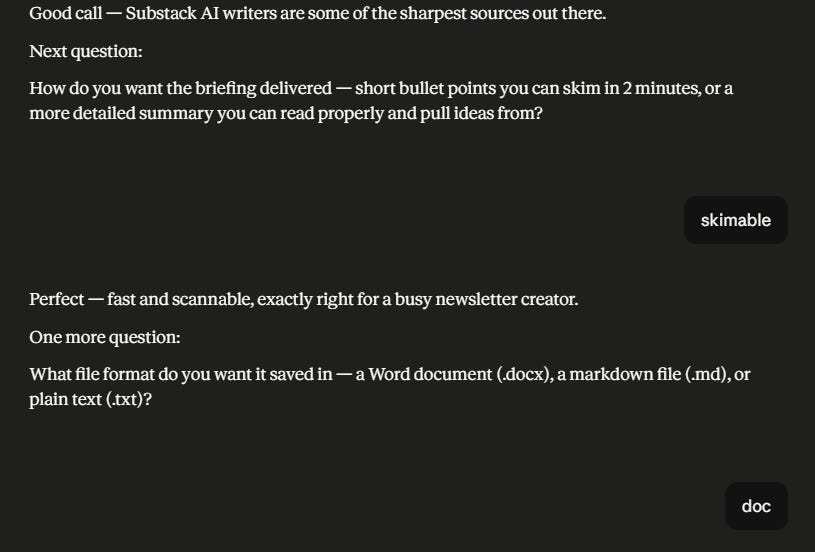
Every automation gets personalised like this. It never sets up a generic version of anything.
Step 6 — Review and schedule Once each automation is personalised, AutoLife asks what time you want it to run and how often.
I said: “Every day at 7am.”
It immediately created the scheduled task and confirmed: “Daily AI Trending Topics Briefing is live. Every morning at 7:00 AM, Claude will research trending AI topics and drop a ready-to-use briefing doc straight into your AutoLife OS/research/ folder.”
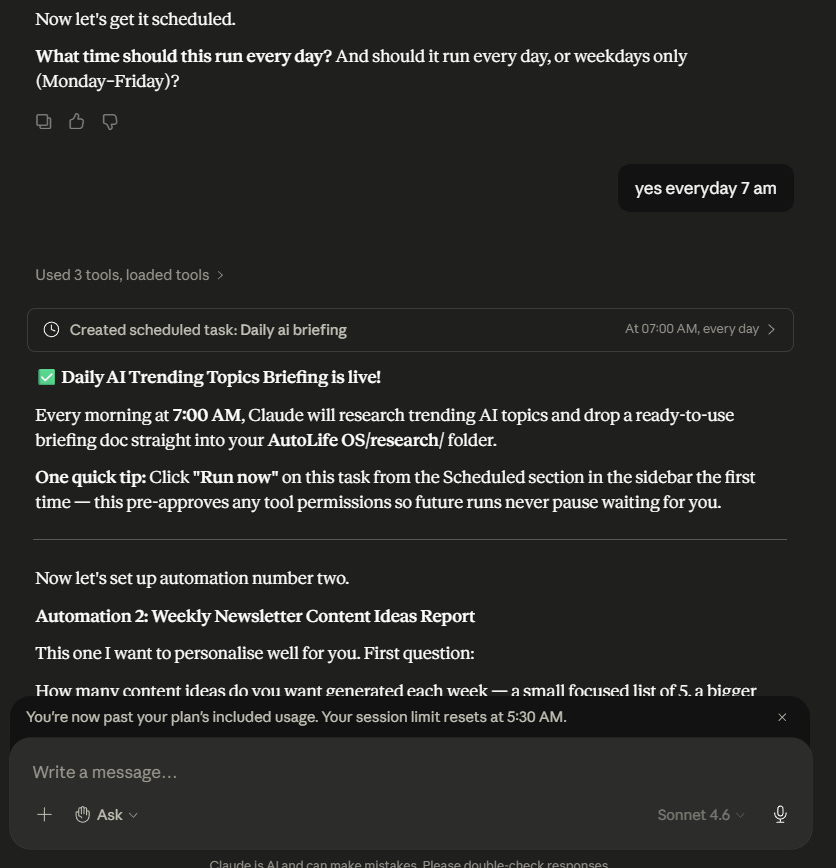
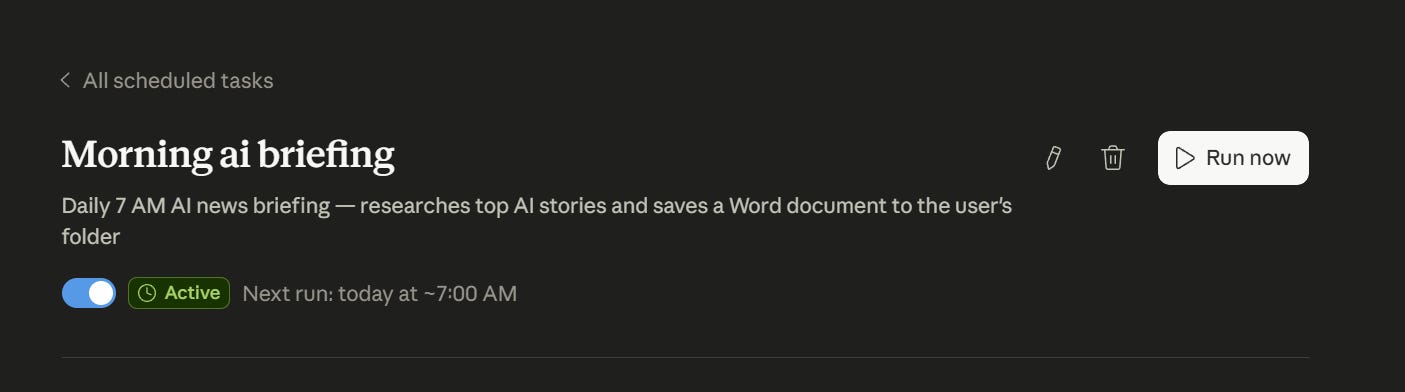
After scheduling, go to the left sidebar in Cowork and click Scheduled. All your active tasks will be listed there.
💡 To test if everything is working, click any scheduled task and hit Run Now. This runs it in real time so you can verify it’s working before the next morning.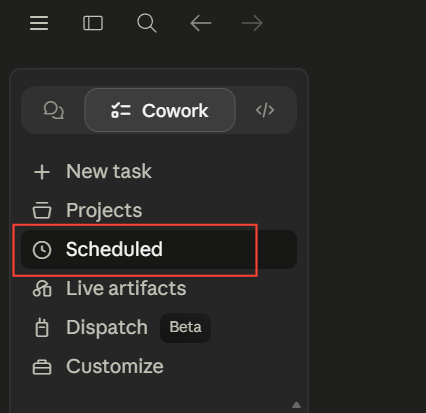
One Thing To Remember
For your scheduled tasks to run automatically, your computer needs to be on and Cowork needs to be open.
That’s the only condition. Everything else happens on its own.