What Every Pilot Needs to Know Before Their First AI Query
By Richard
Published: 2026-01-20
URL: https://flyingforaliving.substack.com/p/a-pilots-guide-to-safe-ai-use-privacy
The AI applications discussed here are for personal knowledge retention and study acceleration only. All aviation learning must be verified against official FAA sources. These tools supplement (never replace) human instruction and judgment. I maintain strict compliance with my employer’s AI policies, using these techniques exclusively for off-duty personal development.
As aviation professionals, we hold a higher standard of responsibility and that extends to how we use AI tools.
This isn’t theoretical. Every conversation with ChatGPT, Claude, or Gemini creates a data trail. Your prompts get stored, analyzed, and potentially used for model training. If you’re copying internal procedures, flight operations details, or anything from company systems, you’re creating real privacy and security exposure.
Think of AI like talking to a stranger in an airport terminal. You’d discuss general aviation topics, regulations, or flight training theory, but you wouldn’t show them your company iPad or share internal SOPs.
The same rule applies to AI: discuss only public knowledge, verify everything, and keep company information completely separate.
Here’s how to use AI safely without compromising what you’re trusted to protect.
The Core Rule: Never Share Sensitive Material
Don’t upload or discuss:
- Company standard operating procedures (SOPs)
- Airport security procedures or diagrams
- Crew scheduling information or internal communications
- Specific tail numbers or aircraft registration details
- Proprietary training materials from your airline or flight school
- Personal logbook entries with identifying information
- Any data that could violate company policy or NDAs
Even if an AI provider claims your data is private, most company policies explicitly forbid sharing proprietary information with third-party AI tools.
Use general examples instead. If you want to practice a procedure, describe it generically: “a twin-engine turboprop” instead of your actual aircraft type. “A Class C airport in the Midwest” instead of your home base.
Pictures/Screenshots
Another common mistake is accidentally uploading a screenshot or photo with sensitive material into an AI tool. Here is a list of images you should never send to an AI app:
- Company iPads, Jeppesen charts, or proprietary approach plates
- Your logbook (even cropped, metadata and formatting can identify you)
- ForeFlight screenshots showing your route, airport, or aircraft type
- Cockpit instruments or displays from your actual aircraft
- Any physical documents from your airline or flight school
You might remember not to type sensitive information, but a quick photo of a company approach plate to ask a question feels harmless. It’s not. Image uploads often contain metadata (location, device type, timestamp) and the content itself becomes training data.
Instead, try describing what you’re seeing: “On an ILS approach plate, what does the lightning bolt symbol next to the minimums mean?” You could also use publicly available examples from faa.gov.
Turn Off Data Sharing Immediately
Many pilots don’t realize that AI platforms use your conversations to improve their models by default. That means your questions about company procedures, specific aircraft tail numbers, or airport operations could end up in training data that anyone might access through future AI queries.
Most major AI platforms allow you to opt out of having your conversations used for model training. Do this before your first aviation query.
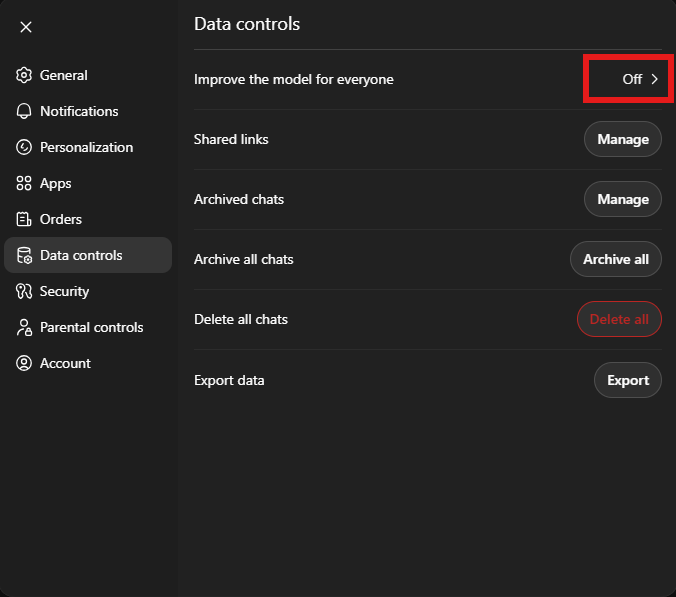
ChatGPT (OpenAI)
- Click your profile icon (bottom-left corner)
- Select “Settings”
- Go to “Data Controls”
- Toggle off “Improve the model for everyone”
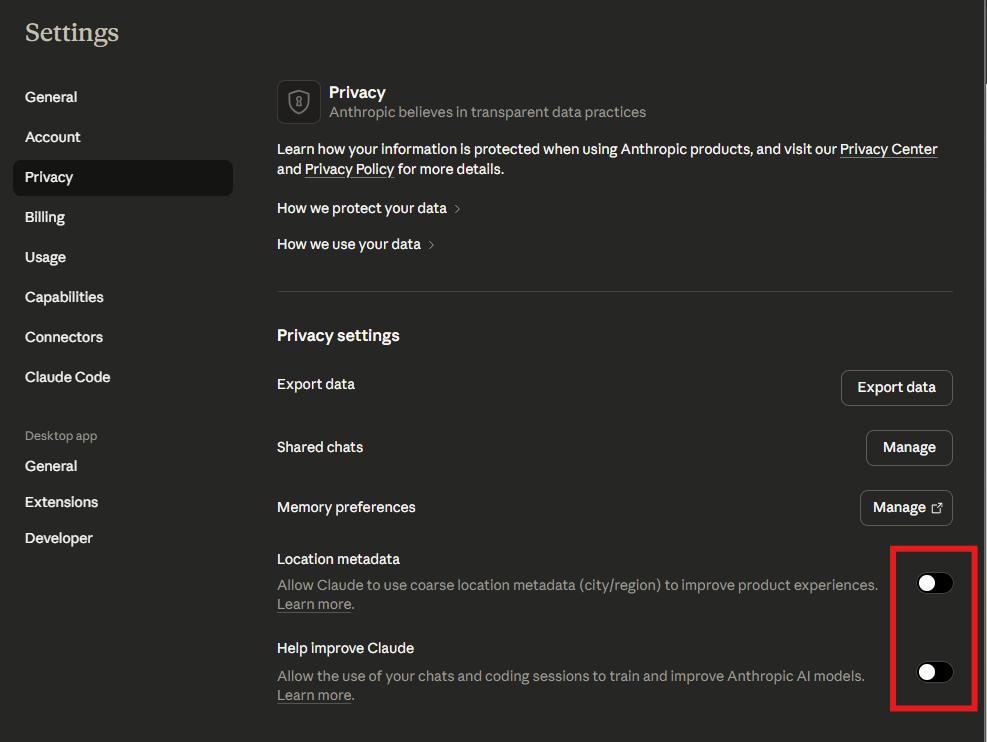
Claude (Anthropic)
- Click your profile icon (bottom-left corner)
- Select “Settings”
- Go to “Privacy”
- Verify conversations are not being used for training
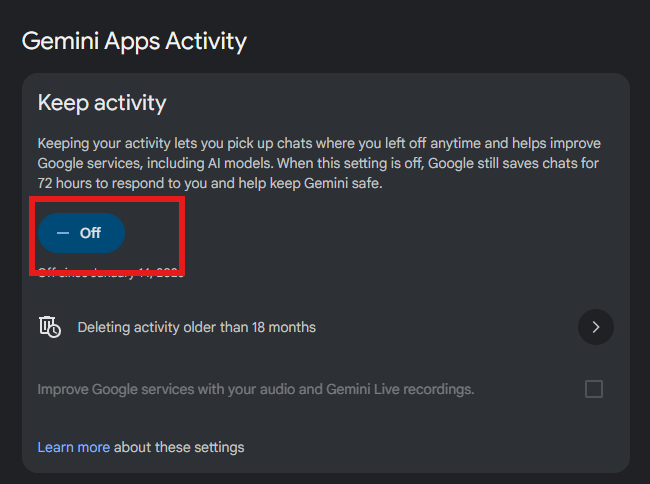
Gemini (Google):
- Click on settings in the bottom left corner
- Select “Activity”
- Go to “Gemini Apps Activity”
- Toggle off “Save Gemini Apps Activity”
- You can also delete past activity from this page
Important: Even with these settings disabled, treat every AI conversation as potentially visible to others. These settings reduce risk but don’t eliminate it.
Mobile App Privacy Settings
The settings are different on mobile and that’s where most pilots will actually use AI.
Between flights, during commutes, or in the crew lounge, you’re likely using your phone. Here’s what changes:
ChatGPT (iOS/Android):
- Tap your profile icon → Settings → Data Controls
- Toggle off “Improve the model for everyone”
Mobile-specific risk: The app may sync conversations across devices. If you use ChatGPT for work on desktop, keep aviation study in temporary chat mode on mobile to prevent mixing contexts.
Claude (iOS/Android):
- Tap profile → Settings → Privacy
- Verify training opt-out status (same as web)
Gemini (iOS/Android):
- Menu → Settings → Gemini Apps Activity
- Toggle off activity saving
Warning: Google’s mobile apps are more aggressive about data collection. Consider using Gemini in a mobile browser with temporary chat instead of the app.
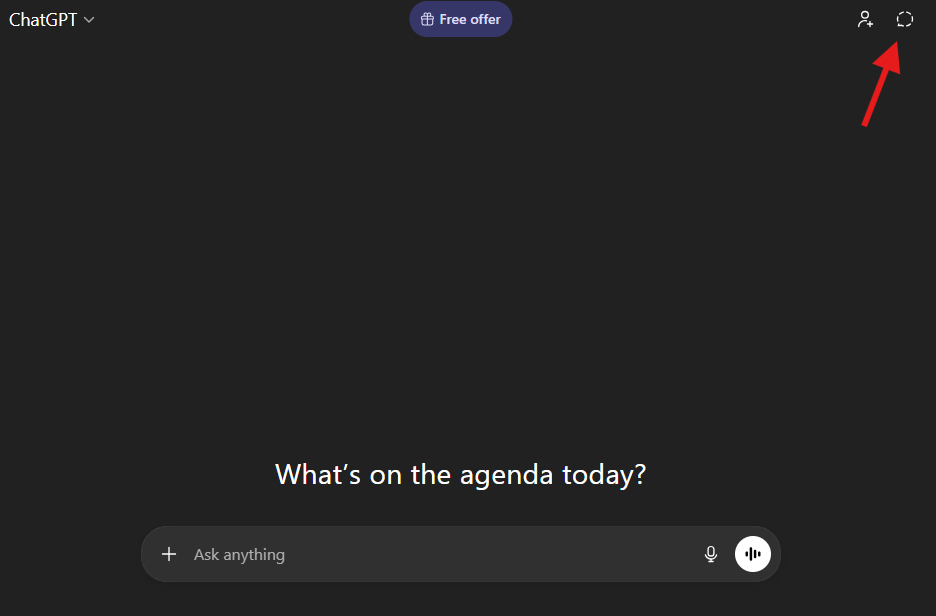
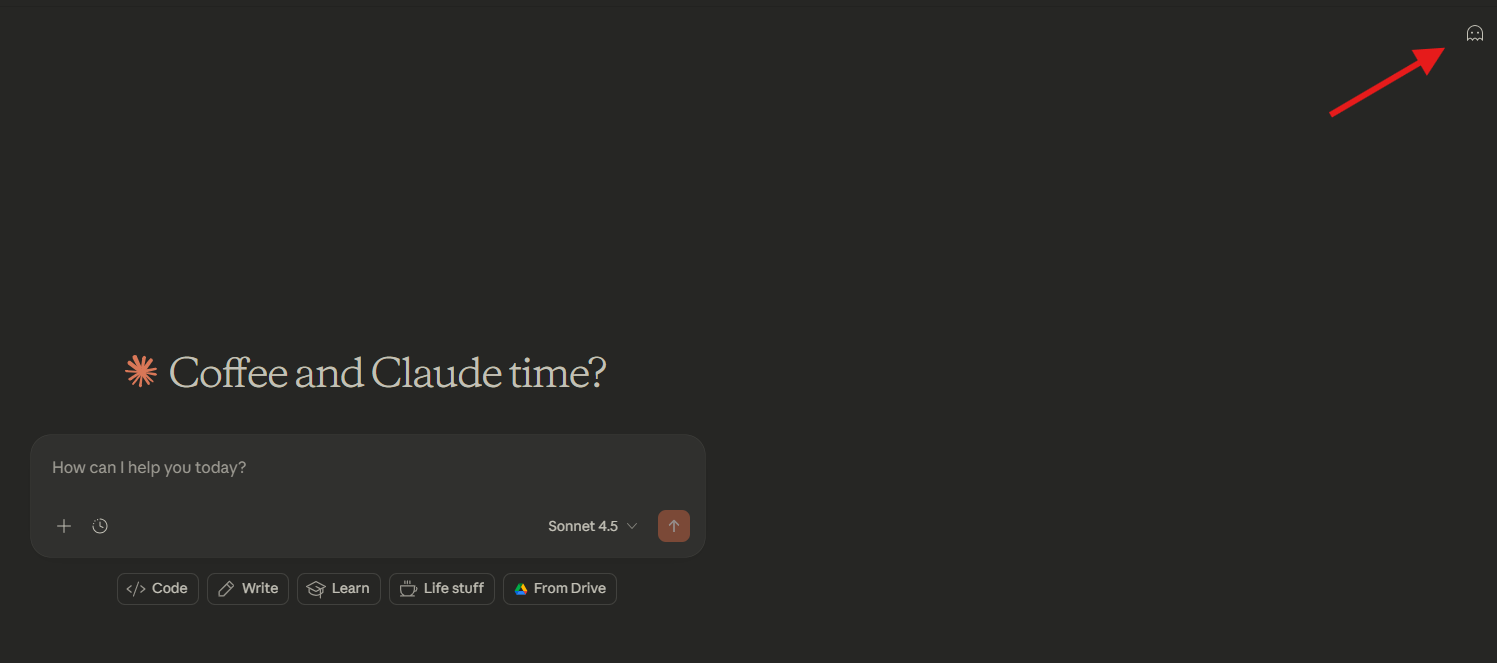
Use Incognito/Temporary Chat Modes
Most AI platforms offer temporary chat modes that don’t save your conversation history:
- ChatGPT/Gemini: Enable “Temporary chat” before starting your conversation
- Claude: Turn on “Incognito mode” in the top right corner
These modes are useful when you’re working with information you don’t want stored long-term, though you should still follow the data sensitivity guidelines above.
ChatGPT (OpenAI):
Claude (Anthropic):
Gemini (Google):

Voice Mode Warning
Many GenAI applications offer voice mode. These have separate privacy implications.
Voice data may be processed differently than text and conversations might be stored for quality/safety monitoring, even with data sharing disabled. It’s easier to accidentally mention specific details (tail numbers, airports, names) when speaking naturally.
Only use voice mode in a temporary/incognito chat. Treat it like you’re on a recorded line and stick to theoretical/general questions, never operational specifics.
Voice is great for brainstorming or exploring concepts, but type out your actual study questions. Typing makes you more deliberate about what you’re sharing.
Create Dedicated Accounts
Keep your aviation AI study completely separate from work:
Use a personal email for your AI accounts. Never your company email address. This maintains clear separation between personal learning and professional duties.
Don’t mix contexts. If you use ChatGPT for multiple projects, create a separate account for aviation study. This prevents accidental crossover and makes it obvious that your aviation AI use is personal education, not operational decision-making.
Keep it clearly labeled. Name your Claude Projects things like “Personal Flight Training Study” so there’s zero ambiguity about what you’re doing.
Browser-level separation matters too. Use separate browser profiles for aviation AI study. Cookies and logins can cross-contaminate even with separate accounts. Firefox Container Tabs or Chrome profiles work well for keeping aviation study completely isolated.
What Your Company Policy Probably Says
Most airlines and flight schools have policies that either explicitly prohibit using AI tools for operational purposes or forbid sharing information with third-party services.
Always assume your company prohibits AI use for anything work-related unless you have written confirmation otherwise.
This is why framing your AI use as “personal study on your own time using publicly available FAA materials” is critical. You’re not using AI to perform your job. You’re using it to accelerate your personal understanding of publicly available aviation knowledge.
If You Made a Mistake
Don’t panic. Take these steps immediately:
1. Delete the conversation
- ChatGPT: Click the conversation → Delete
- Claude: Click “...” menu → Delete conversation
- Gemini: Settings → Gemini Apps Activity → Delete activity
2. Contact the provider (if truly sensitive)
- Use their support/privacy contact forms
- Request permanent deletion of specific conversation IDs
- Document your request with screenshots
3. Notify your company if required
- Check your company’s data breach/security policies
- If you uploaded genuinely proprietary info, you may be required to report it
- Better to self-report than be discovered later
4. Change your approach going forward
- Review this checklist again
- Set a phone reminder to verify incognito mode before AI use
- Consider this a learning moment, not a career-ender
Most beginner mistakes are relatively low-risk (asking about your specific airplane type, mentioning your home airport). Deletion plus changed habits is usually sufficient. The goal is preventing patterns of exposure, not achieving perfect operational security.
Final Checklist Before Using AI for Aviation
✅ Data sharing is turned off on all AI platforms (web and mobile)
✅ You’re using a personal email, not a company email
✅ You understand what information is off-limits
✅ You know never to upload screenshots of company materials or logbooks
✅ You’re using temporary/incognito mode for sensitive study topics
✅ You have separate browser profiles or accounts for aviation study
✅ You’re only using publicly available materials as sources
✅ You’ve confirmed (or assume) your company prohibits AI for operational use
If you can check all these boxes, you’re ready to start building your AI-enhanced study system safely.
Thanks for reading AviationML! Subscribe for free to receive new posts and support my work.
Questions about a specific privacy scenario? Drop a comment or message me. I want to make sure you’re protected before you start experimenting with AI study tools.