A simple guide for non-technical people on using Claude Projects in your work and how it actually saves time
By Alesia Zakharova
Published: 2026-01-07
URL: https://alesiazakharova.substack.com/p/i-used-ai-claude-projects-for-my
[

](https://substackcdn.com/image/fetch/$s!dRLL!,fauto,qauto:good,flprogressive:steep/https%3A%2F%2Fsubstack-post-media.s3.amazonaws.com%2Fpublic%2Fimages%2F03e5833e-b9df-4f43-a687-6b8b87dc9dd2_1024x608.png)
What Is Claude Projects?
Imagine you have this really smart assistant Claude. Super helpful. Knows a lot.
But he shows up to each meeting with zero prep. Great during the meeting, but next time you meet, he’s starting from scratch.
Every time you give them a task—for example, to write an email sequence for your digital product—you have to explain everything in detail again:
what your product is, what email structure you want, who your target audience is, and so on.
The next day, you ask them to create a landing page for your product—that is, you start a new chat—and once again you have to explain everything from the very beginning.
Claude Projects? That’s your executive assistant walking into every meeting like:
You: “Hey Claude, remember that newsletter thing?”
Claude: [looks at filing cabinet] “Oh yeah, your productivity newsletter. Audience is busy professionals. You like using personal stories. Your last three articles are here. Want me to reference the framework we built last week?”
You: “...I love you.”
It’s the same Claude. Same intelligence. Same capabilities.
But now Claude has a system. A memory that persists across every conversation. And a filing system. And the ability to remember that you hate using semicolons and love starting articles with questions.
The free version gives you one brilliant assistant who can manage up to 5 projects maximum.
The Pro version ($20/month) gives you assistant who can handle unlimited projects—no caps, no limits, and they never take breaks or forget things.]()
How Claude Projects Can Save You Time
Okay so there are three things Projects do that regular chats just... can’t. Let me show you:
1. It Stores Your Knowledge Base (So You Stop Doing the Same Research Twice)
Here’s the thing about regular Claude chats:
You can attach documents. Sure. You can upload your article, your research, your style guide.
But here’s what you CAN’T do:
In regular chats:
-
Maximum 5 documents per conversation
-
Each new chat = re-upload everything
-
Want to reference that research from last week? Good luck finding it in your 47 scattered chats
In Projects:
-
Upload dozens of documents that stay there permanently
-
Every new conversation in the Project automatically has access to all of them
-
You can even tell Claude which documents to use (or not use) for specific tasks
-
Everything is organized in one place
My actual example:
I uploaded my comparison of AI research tools (ChatGPT, Claude, Perplexity) to my Project.
Now, whenever I start a new conversation in that Project, Claude already knows:
-
What I’ve tested
-
What conclusions I reached
-
What methodologies worked
-
What frameworks I developed
I don’t re-upload it. I don’t re-explain it. I don’t even have to say “remember that comparison I did?”
It’s just... there. Always.]()
2. It Builds A Library Of Your Texts (Artifacts)
“Artifacts” is Claude’s confusing name for: documents that Claude creates for you that you can save, edit, and reuse.
Here’s how it works:
Regular chat:
-
You: “Write me a welcome email”
-
Claude: [writes email in the chat]
-
You: Copy-paste into Google Docs
-
Next week: Where did I save that email? [searches through 20 documents]
Projects with Artifacts:
-
You: “Write me a welcome email”
-
Claude: [writes email as an Artifact - a separate, saveable document]
-
The Artifact stays in your Project “Welcome email”
-
You can pull it up anytime, edit it, use it as a template
-
You can say: “Use the welcome email Artifact and adapt it for paid subscribers”
My actual example:
I created 5 email sequence drafts as Artifacts in my Project. Now when I need to write a new email, I can say: “Reference Email 3 Artifact and use that tone for this new email.”
Claude knows exactly what I’m talking about because the Artifacts are right there in the Project.
It’s like having a filing cabinet where everything you’ve created with Claude lives permanently, instead of being scattered across 500 random chats .
And when you need to find that email sequence or landing page you wrote three weeks ago, you’re not scrolling through pages of chats with vague names, trying to remember which one had the thing you need.
Instead, you just open the project you need. Each of them has its own chat history, its own uploaded documents, its own Artifacts (texts).
For someone who works on multiple things (different newsletters, client work, personal projects), this isn’t a “nice to have.”
This is the difference between spending 10 minutes searching for something and spending 10 seconds.
3. Claude Project Remembers Your Instructions Forever (So You Don’t Have To Say Them Twice.
In a regular chat, you can tell Claude how you want it to write. You can say “use a conversational tone” or “write like a human.”
But in Projects, you can write PERMANENT INSTRUCTIONS that apply to every single conversation in that Project.
Permanent instructions in Claude projects are like the brain settings for that project.
They sit in the background and quietly shape how Claude thinks and talks every single time you open that project.
You write them once, and then every new chat in that project follows those rules automatically.
What to write in The Instructions:
It depends on your project. For instance, you can use this space to answer a few simple questions for Claude:
-
Who are you writing to?
-
“I write a newsletter for creators who are smart but busy.”
-
How should Claude write?
-
“Use simple language, be friendly, avoid jargon, short paragraphs.”
-
What are you working on here?
-
“This project is for newsletter drafts, email sequences, and landing pages.”
-
How should answers look?
-
“Use headers and bullet points, give concrete examples, keep answers under 400 words.”
-
What are the standing rules?
-
“Always think about Substack context. Remind me of earlier ideas from this project if they fit.”]()
How to Actually Set Up Your Claude Project
It’s very simple. You don’t need any technical skills to create your own Claude Projects. Let’s build your system right now.
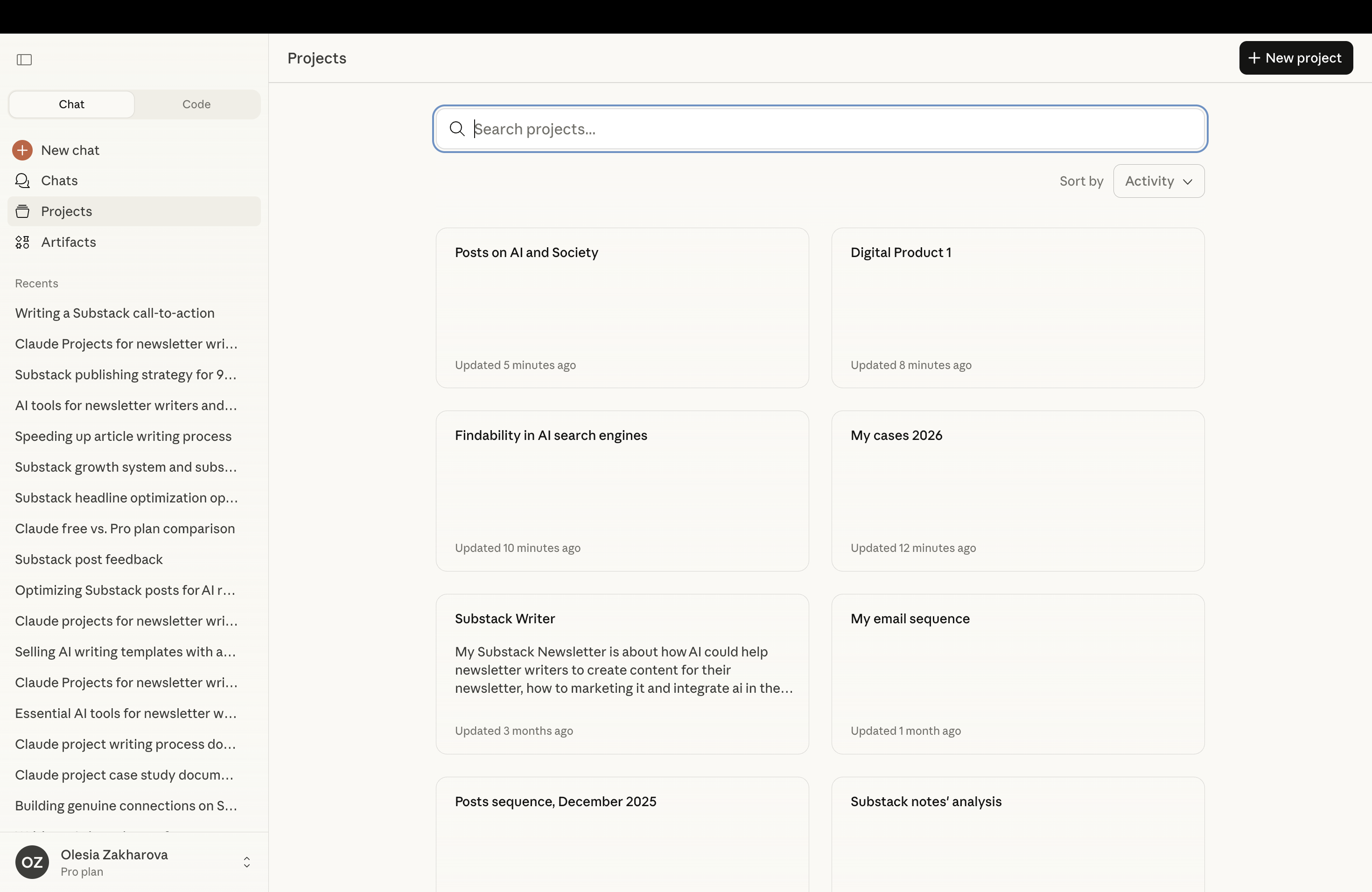
Step 1: Create Your Project
-
Open Claude (you need Pro for unlimited Projects; free users can create up to 5)
-
Click “Projects” in the sidebar
-
Select “Create Project” or “New Project”[
](https://substackcdn.com/image/fetch/$s!evC4!,fauto,qauto:good,flprogressive:steep/https%3A%2F%2Fsubstack-post-media.s3.amazonaws.com%2Fpublic%2Fimages%2F533c1578-9d7f-4658-9c1e-3bf3632df97a_2940x1912.png)
-
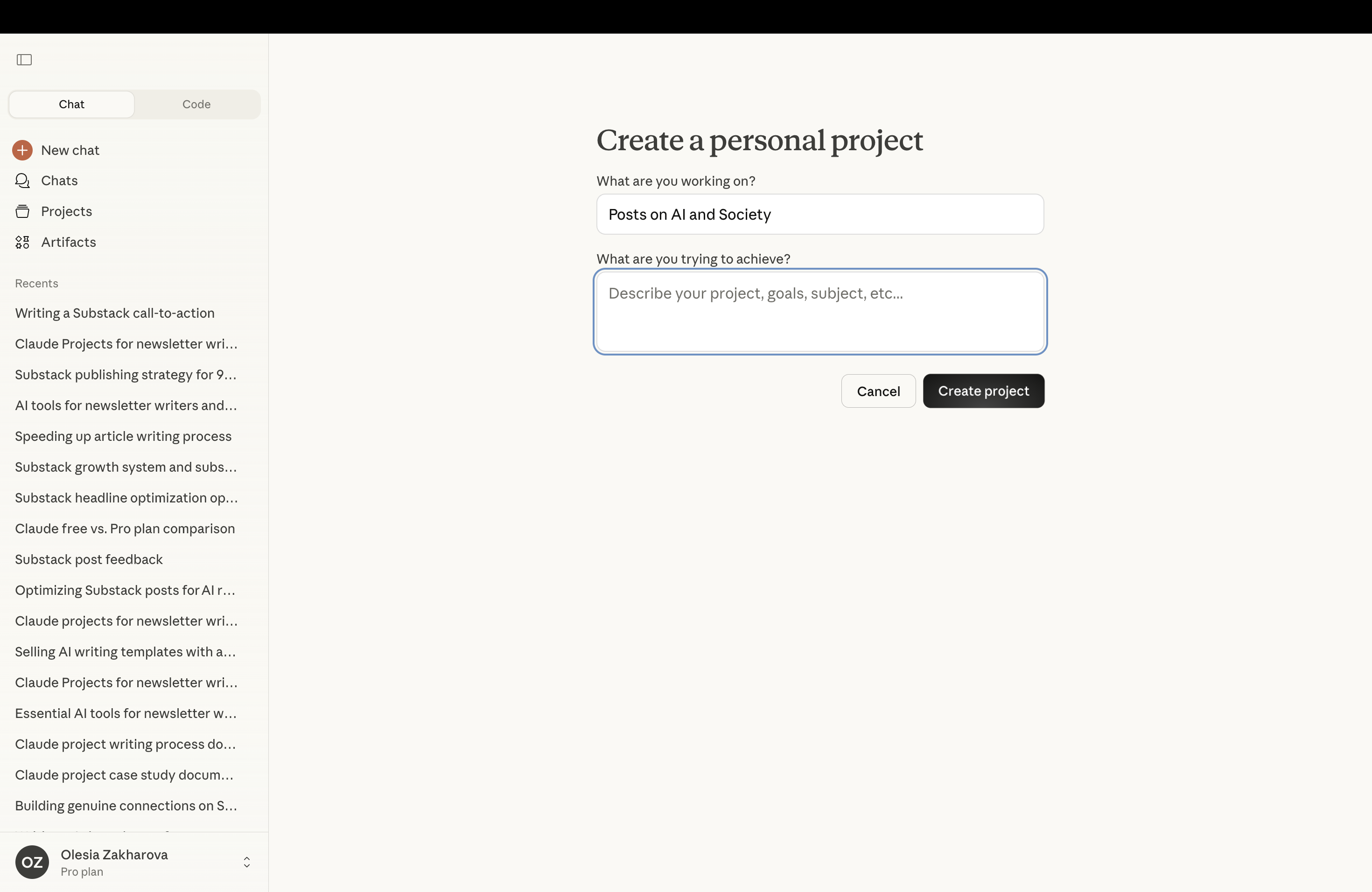
Name it something clear: “Newsletter writing” or “Digital product 1”
-
In the “What are you trying to achieve?” section, you can either briefly describe the goals of your project or just skip it if you prefer. Then hit “Create project” and you’re ready to go.[
](https://substackcdn.com/image/fetch/$s!f4iT!,fauto,qauto:good,flprogressive:steep/https%3A%2F%2Fsubstack-post-media.s3.amazonaws.com%2Fpublic%2Fimages%2Fed6802b9-876e-4566-98ef-f06f15cd5b9a_2940x1912.png)
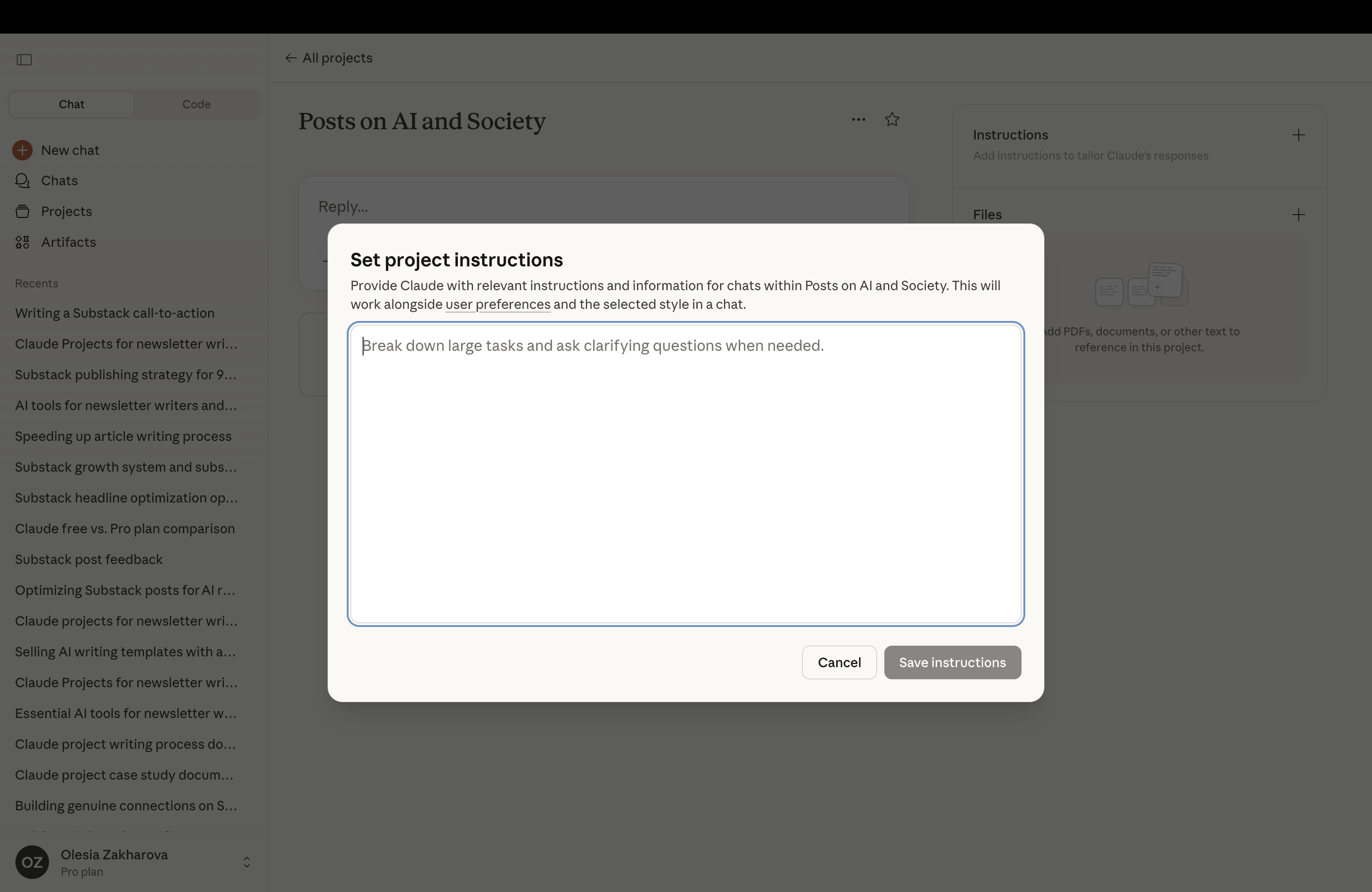
Step 2: Write Your Custom Instructions
In the top right corner, you’ll see a section called Instructions. Click on it and write out how you want Claude to handle your tasks. Like you’re explaining the job to a new hire.[
](https://substackcdn.com/image/fetch/$s!6mDV!,fauto,qauto:good,flprogressive:steep/https%3A%2F%2Fsubstack-post-media.s3.amazonaws.com%2Fpublic%2Fimages%2F14408d45-78e9-4c5c-9183-09bc3790b229_2940x1912.png)
Example:
I’m a newsletter writer focused on productivity.
My audience: Busy professionals, ages 30-45, struggling with time management
My writing style:
- Conversational, like talking to a friend
- Personal stories that illustrate points
- Lists and bullet points for scanability
- Mentor tone with encouragement
My content formula:
1. Story opening (hook emotionally)
2. Commentary (explain why it matters)
3. Takeaway (actionable advice)
Always:
- Use “you” language
- Keep paragraphs short (2-3 sentences max)
- End with a clear call to action
- No corporate jargon
In some cases, I don’t write any instructions at all, it’s enough to attach a sample, for example a welcome email or a template.
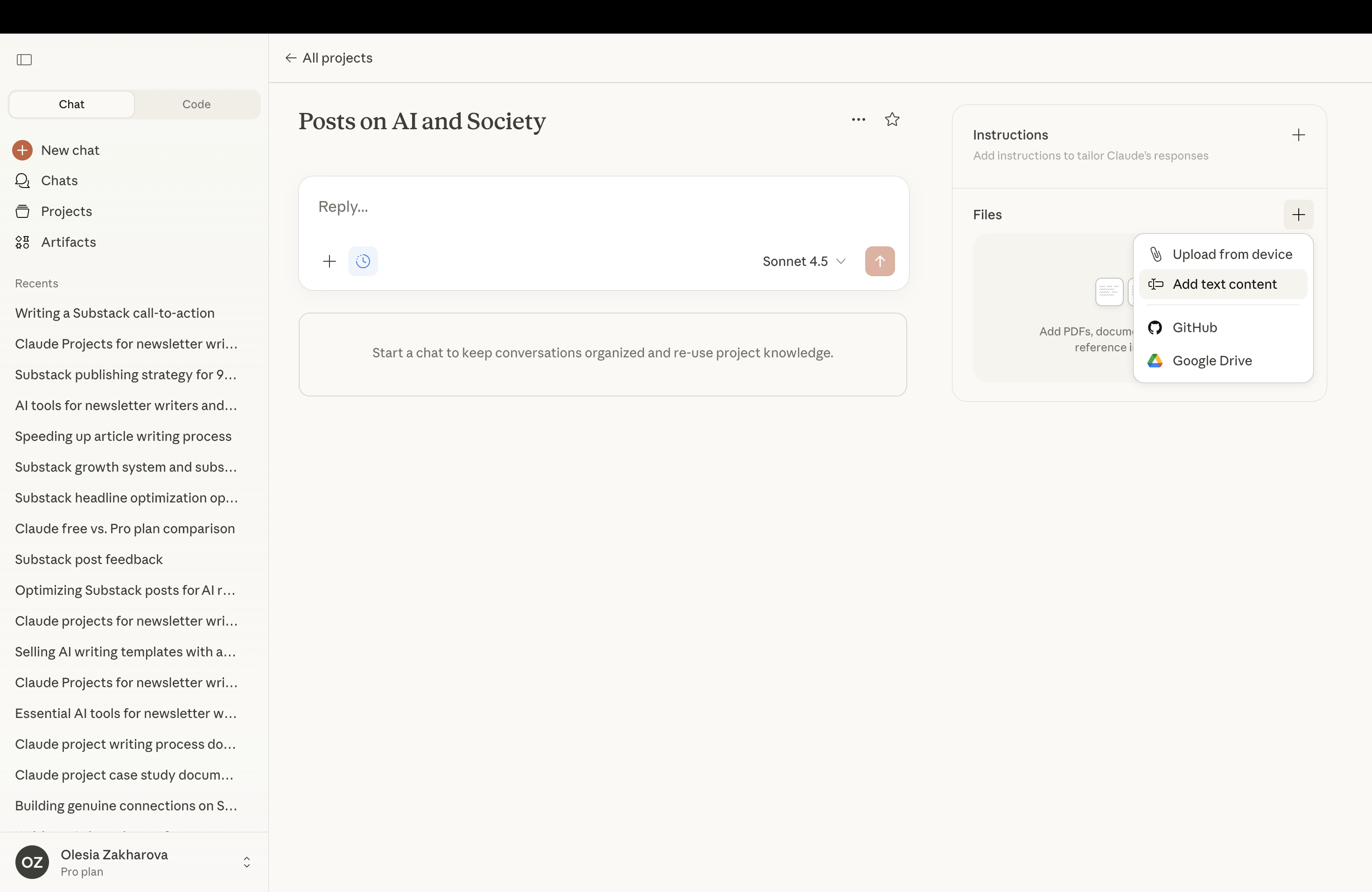
Step 3: Upload Your Knowledge Base Files
This is probably the most useful feature of Claude Projects. You can paste text directly into Claude and it will create a file inside the project, or you can attach a document. Claude accepts different formats.[
](https://substackcdn.com/image/fetch/$s!2F5u!,fauto,qauto:good,flprogressive:steep/https%3A%2F%2Fsubstack-post-media.s3.amazonaws.com%2Fpublic%2Fimages%2F31192990-3116-4024-86e7-8bca4687dccd_2940x1912.png)
Here you can attach, for example, your best article as a sample of text structure, types of hooks, various research materials needed for writing, templates, your case studies, and so on.
Example:
For pattern analysis:
-
Collection of your published work
-
Engagement data (which posts performed best)
-
Reader feedback or comments
-
Failed experiments (what didn’t work and why)
Critical tip: Keep it curated. Every file should serve a clear purpose. If you upload contradictory information, Claude gets confused.
Step 4: Use It For Your Actual Workflow
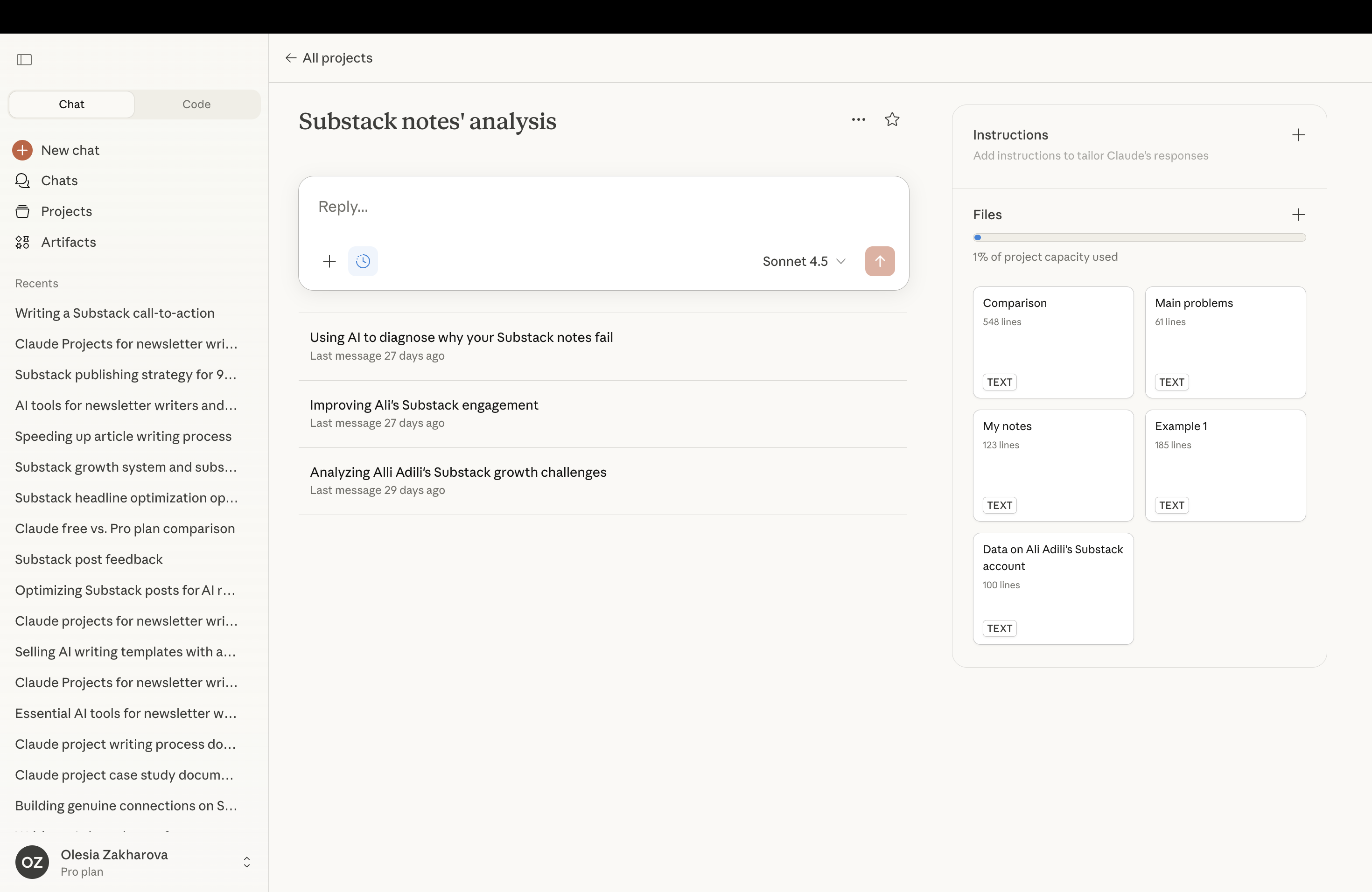
Now the system comes alive. Here’s what one of my projects looks like, for example.[
](https://substackcdn.com/image/fetch/$s!atwD!,fauto,qauto:good,flprogressive:steep/https%3A%2F%2Fsubstack-post-media.s3.amazonaws.com%2Fpublic%2Fimages%2Fbfdfe06d-e0c0-4d22-96c4-f09e5326002b_2940x1912.png)
Here’s how to deploy it:
Example:
Editing and Optimization Project:
Upload your rough draft: “Optimize this for Substack but keep my conclusions, descriptions, and voice per the style guide.”
What Claude does:
-
Restructures for Substack format
-
Makes sentences punchier
-
Adds engaging subheadings
-
Improves readability
-
Maintains your authentic voice (because it references your uploaded samples)
Follow-up in same Project: “Give me 7 headline options for this article, optimized for Substack.”
Claude creates headlines that match your audience and voice, because it knows both from the Project context.
Your Turn
Try Claude Projects for your next newsletter draft. The free version gives you 5 projects - plenty to test if this actually saves you time.
Start with one project. Upload your best article as a writing sample. Add your style preferences. Then ask Claude to edit your next draft.
You’ll know within 10 minutes if this clicks for you.
Got questions about other ways to use Claude Projects? Drop them in the comments. I’ll answer every question.
Already using Claude Projects (or ChatGPT Projects)? Share your experience in the comments: what's working great for you, and where are you getting stuck?]()
Thanks for reading! Subscribe for free to receive new posts and support my work.
And if you found this useful, share it with a creator friend who’s drowning in scattered AI chats. They’ll thank you.]()